Embed BeeCastle in ConnectWise
Please note: Currently only available for ConnectWise customers Available for all BeeCastle customers (including ProfitTrack only) How to Setup BeeCastle in Con
Please note:
Currently only available for ConnectWise customers
Available for all BeeCastle customers (including ProfitTrack only)
How to Setup BeeCastle in ConnectWise for Menu > Sales
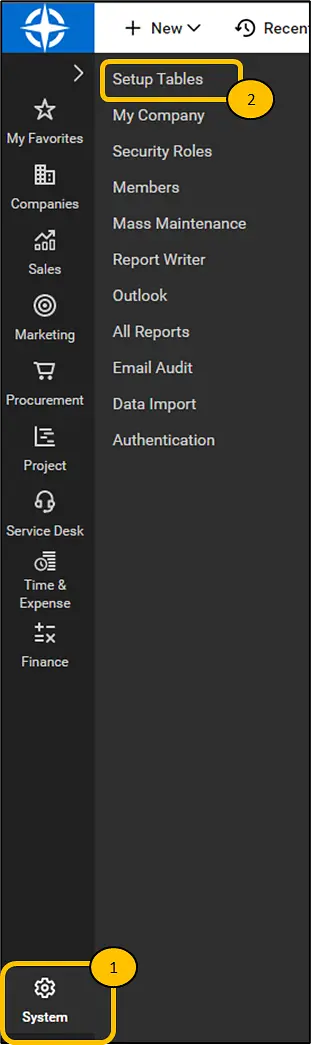
Steps 1 & 2
Within ConnectWise navigate to System -> Setup Tables.
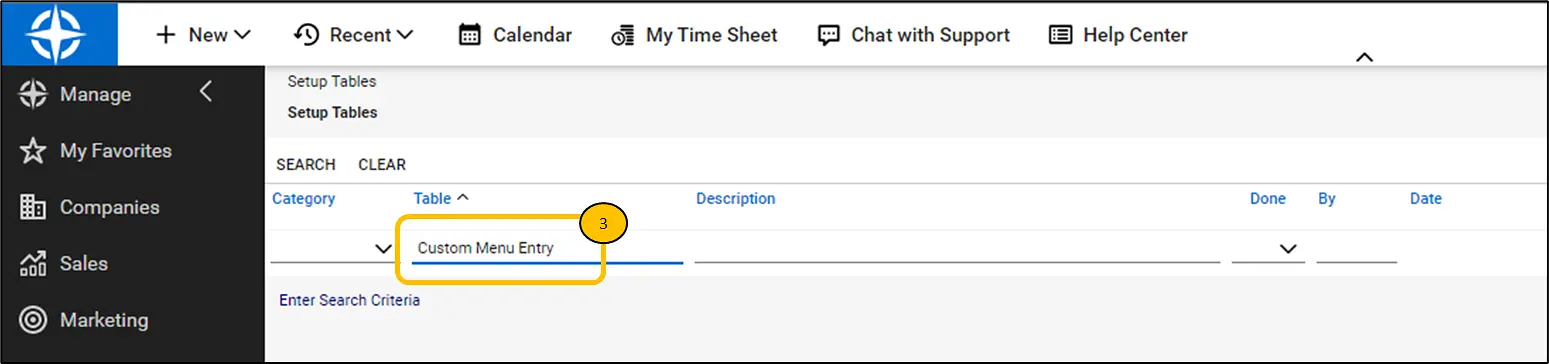
Step 3
In "Table" type in "Custom Menu Entry" and click "Enter."
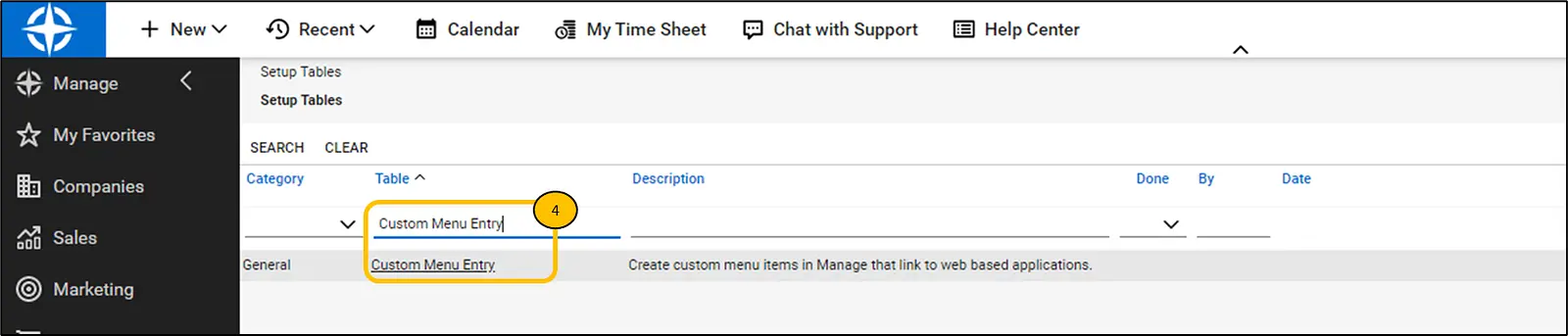
Step 4
Click on the search results of "Custom Menu Entry."
Step 5
Click on the "+" to create a new Menu item.

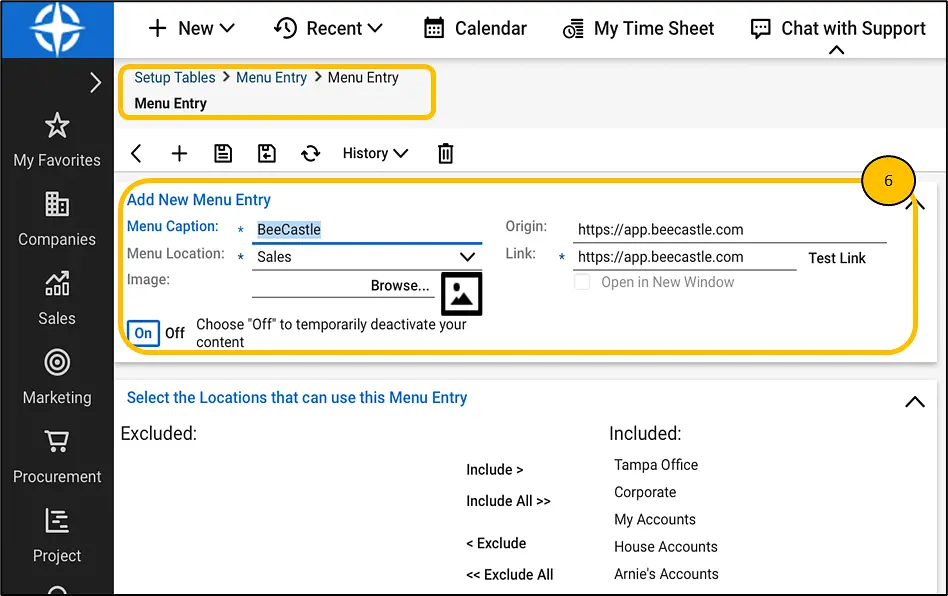
Step 6
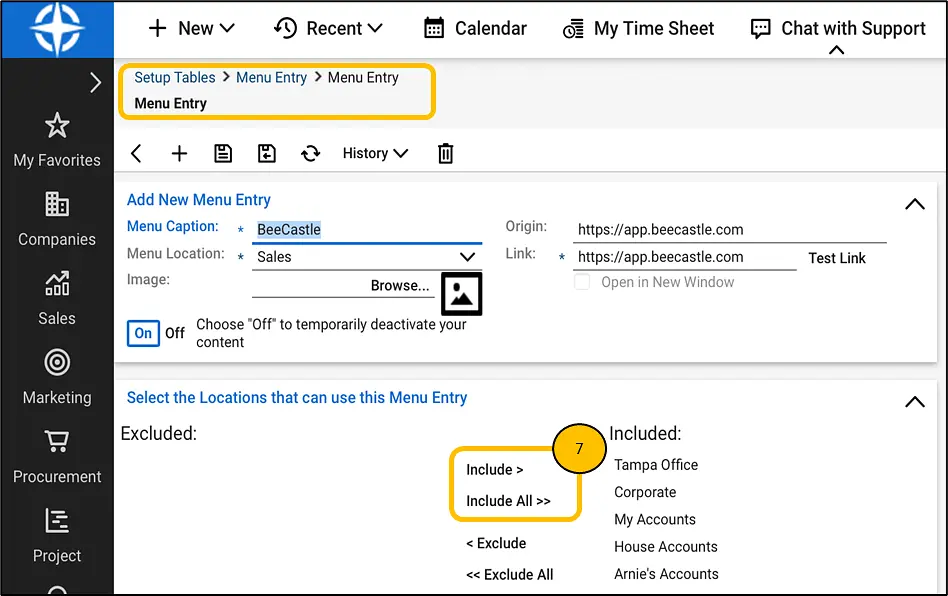
Enter in the details for the BeeCastle menu item.
Step 7
Select "Include All" to make sure that it appears for all users
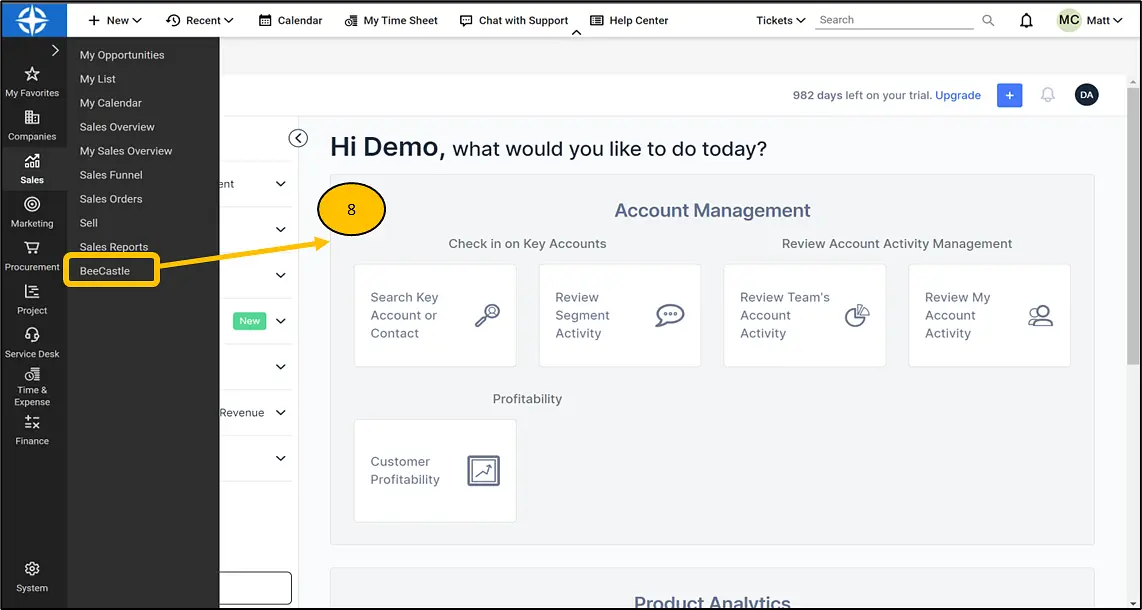
Step 8
Finished! This is what it will look like...
How to Setup BeeCastle in ConnectWise for Today Page
Step 1
Follow the steps 1-3 from above and at step 3, type in "Manage Hosted API Setup."
Step 2
In the "Manage Hosted API Setup" screen, click on the "+" (similar to step 4 above).
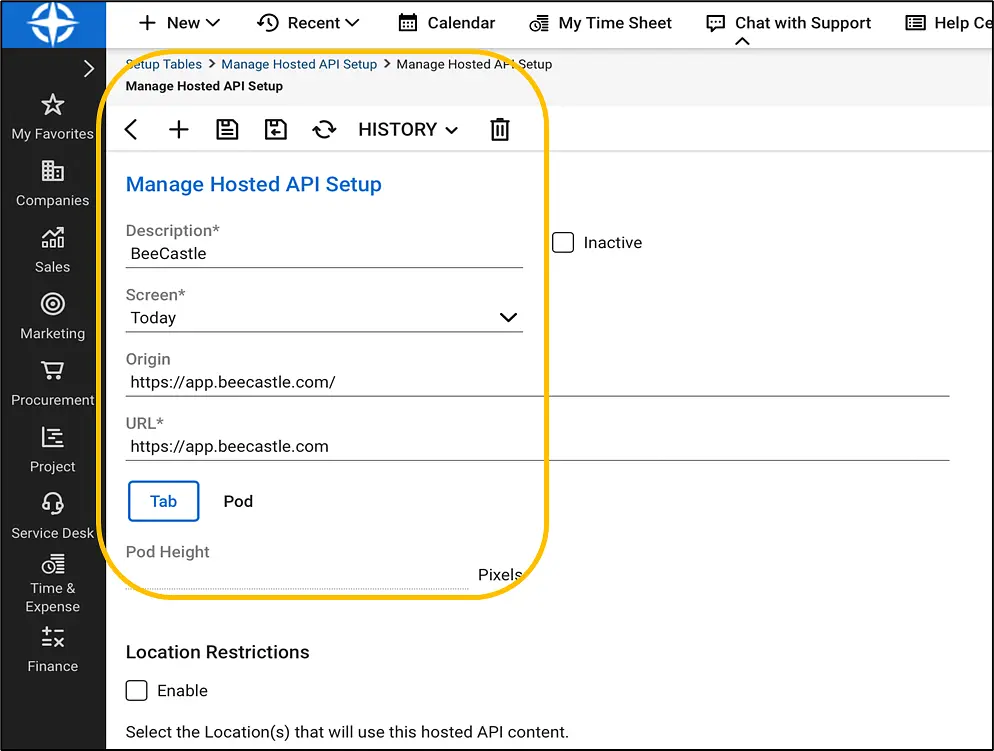
Step 3
Enter the following details.
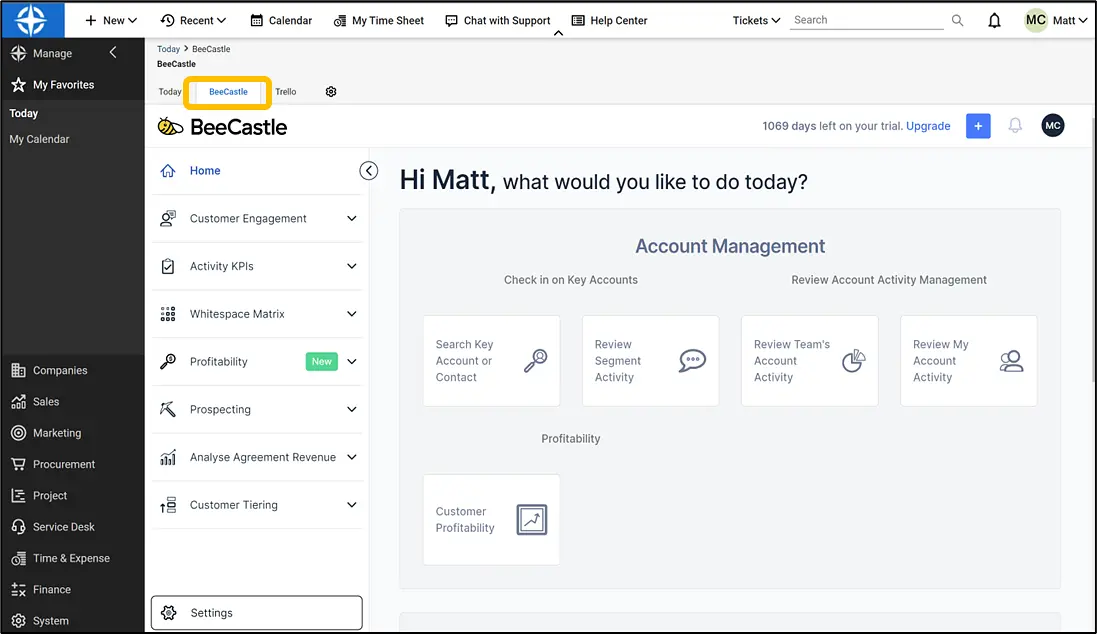
Step 4
Finished! This is what it will look like...
Was this article helpful?
Related articles
Integrating BeeCastle with ConnectWise Cloud
4 quick steps to sync BeeCastle with CW Cloud
ConnectWise IntegrationIntegrating BeeCastle with ConnectWise On-Premise
6 steps to sync BeeCastle with your CW on-premise server
ConnectWise IntegrationBeeCastle and ConnectWise Integration FAQs
Understanding the BeeCastle and ConnectWise integration
ConnectWise IntegrationHow is BeeCastle's Company Tiering calculated?
An article that describes how the automated tiering of companies is calculated using ConnectWise data