Integrating your calendar via the App
Steps to integrate your calendar via iOS settings so your events are automatically logged
Please note: We recommend using per user Microsoft 365 integration as detailed here as it is more stable and records both emails & calendar invites. If this is not possible use the method below to record calendar invites.
When you connect your calendar with BeeCastle you no longer need to log your meetings and calendar invites. Instead, BeeCastle does it for you, recording interactions with your BeeCastle contacts that it sees in your calendar.
BeeCastle connects to your calendar through permission granted to the calendar accounts stored on your iOS device. As such, you manage your calendar integration on your phone.
How do I integrate my work calendar?
When using the app for the first time you will be presented with the Integrated Calendars menu. This is also accessible via the settings menu at any time you use the app.
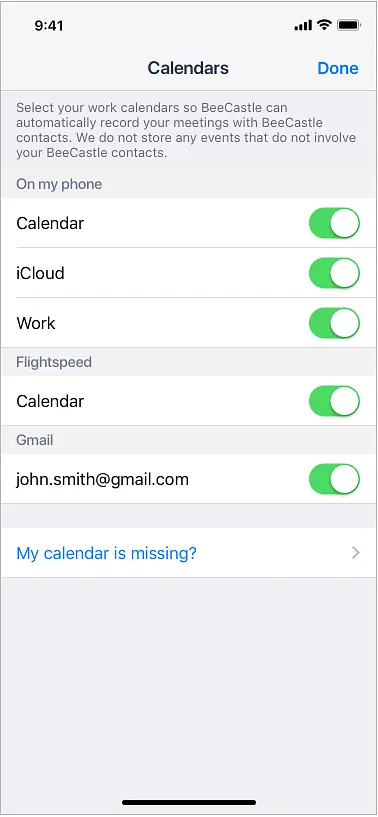
This menu presents all the calendar accounts that are added to your phone. Toggle all your work calendars to on so that BeeCastle can automatically log events with contacts using that calendar.
My calendar is missing from the Integrated Calendar menu. How do I add my work calendar?
If one of your calendars is missing from the above list, it means it is not currently added as an account in your iOS phone settings.
To add the an email provider like iCloud, Google, or Yahoo, you can add an account with just your email address and password. Here's how:
Go to Settings > Passwords & Accounts.
Tap Add Account, then select your email provider.
Enter your email address and password.
Tap Next and wait for Mail to verify your account.
Choose information from your email account, like Contacts or Calendars.
Tap Save.
Once added, you can return back to the BeeCastle Integrated Calendar screen and that new calendar will show in the list so you can toggle it on.
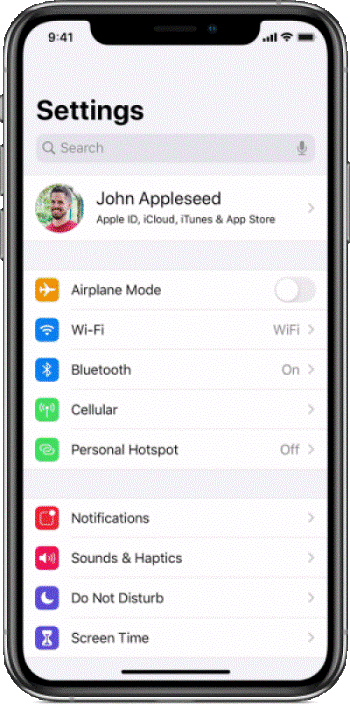
If you don't see your email provider in the list provided by iOS settings, tap Other to add your account manually.
If you need to set up your email account manually, make sure that you know the email settings for your account. If you don’t know them, you can look them up or contact your email provider. Then follow these steps:
Go to Settings > Passwords & Accounts.
Tap Add Account, tap Other, then tap Add Mail Account.
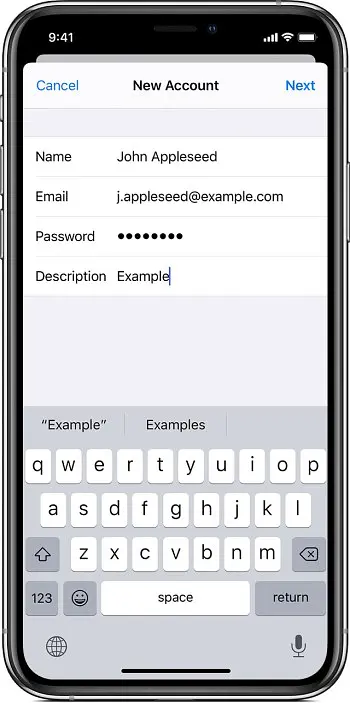
Enter your name, email address, password, and a description for your account.
Tap Next. Mail will try to find the email settings and finish your account setup. If Mail finds your email settings, tap Done to complete your account setup.
Once added, you can return back to the BeeCastle Integrated Calendar screen and that new calendar will show in the list so you can toggle it on.
Was this article helpful?