Track Your Contracts in BeeCastle
Now you can see all of your contracts in BeeCastle and stay ahead of the game!
Please note:
Currently only available for paid customers
Background
As an Account Manager, there are many things you have to stay on top of to maintain strong relationships as well as achieving commercial outcomes. One of the important ones is to understand the status of all contracts with your accounts. Often this data can live in various systems or exists in a non user-friendly format. Now, BeeCastle displays your contract data from your PSA in a way that helps you see everything, so that, you can forward plan and stay ahead of the game.
How to Use
This section provides the details on how to use the key components of this feature, so that, you are able to gain the full value from reviewing your contracts.
Navigation
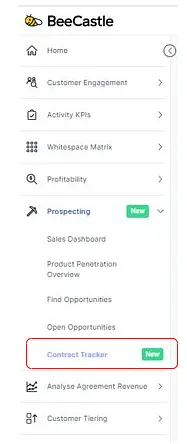
You can find "Contract Tracker" under "Prospecting" as shown in the screenshot below.
Filters
The filters for this page default to:
Contract Status = "Active"
Expires Within = "Anytime"
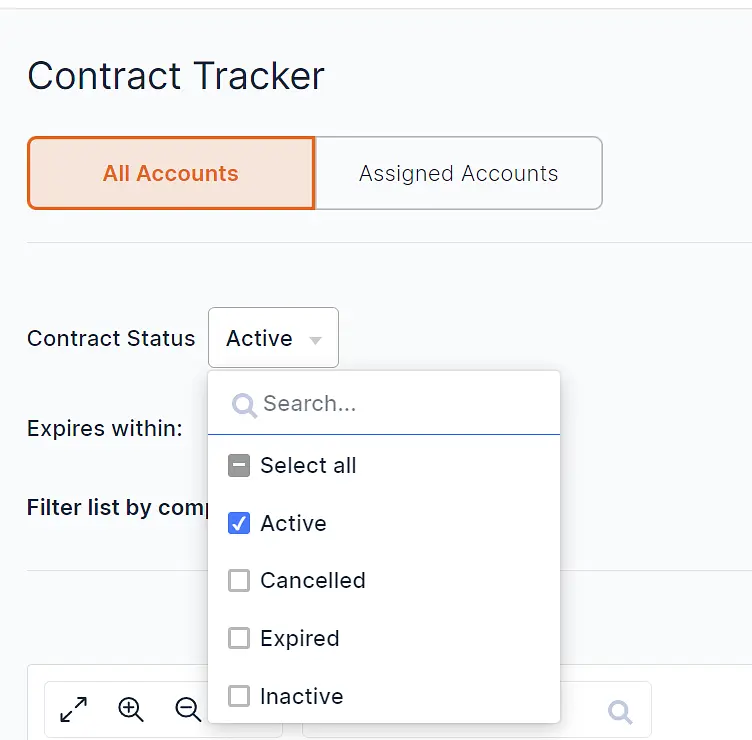
This shows all the contracts. You can then adjust the filters to show specifically what you are looking for. As an example, you could select the "Contract Status = Active", to see just active contracts, as shown in the screenshot below
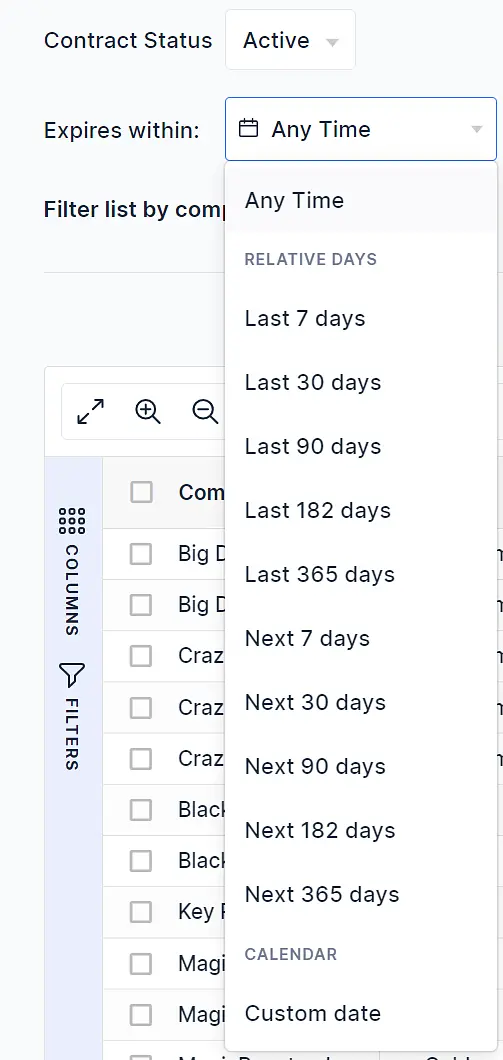
"Expires Within" relates to the "End Date" field. There following options are available, including, "Custom Date" at the bottom of this drop-down field.
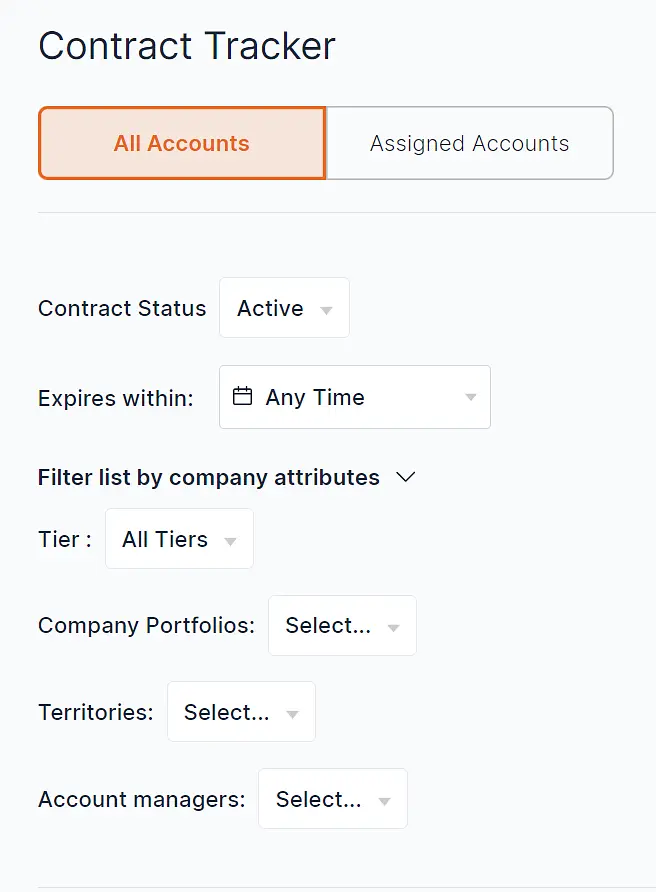
Other standard BeeCastle filters include "All Accounts / Assigned Accounts" and "Filter List by company attributes"
Contracts List Table
This table of contract data has a similar user-interface as the other tables in BeeCastle. You can do the following:
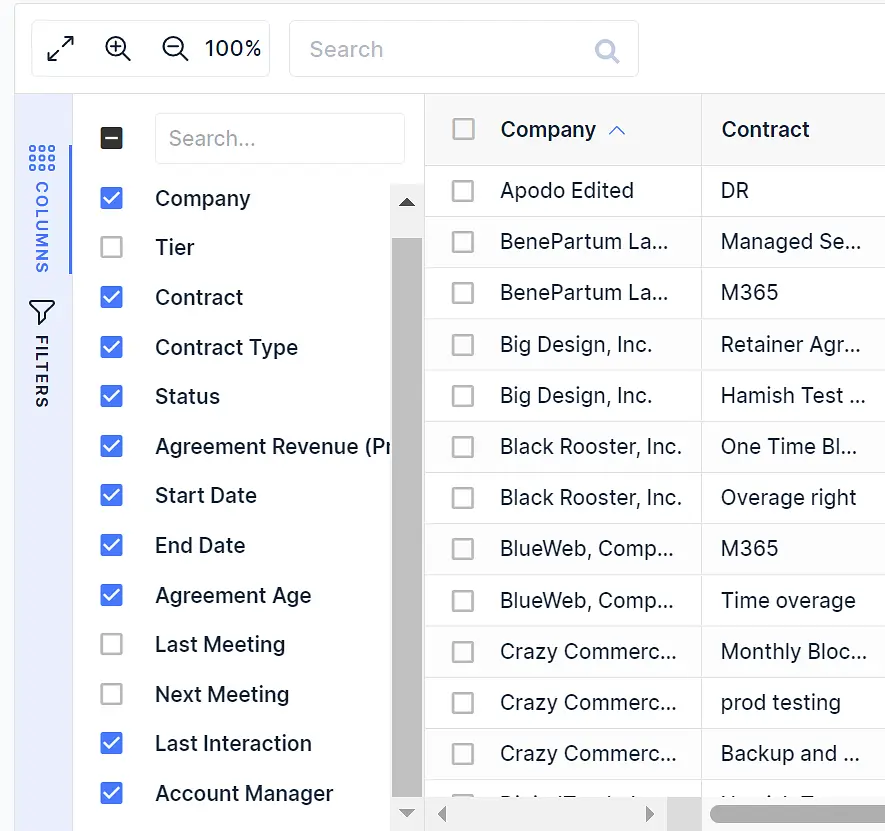
Add or remove columns from the table using the "Columns" selector in purple on the left hand-side
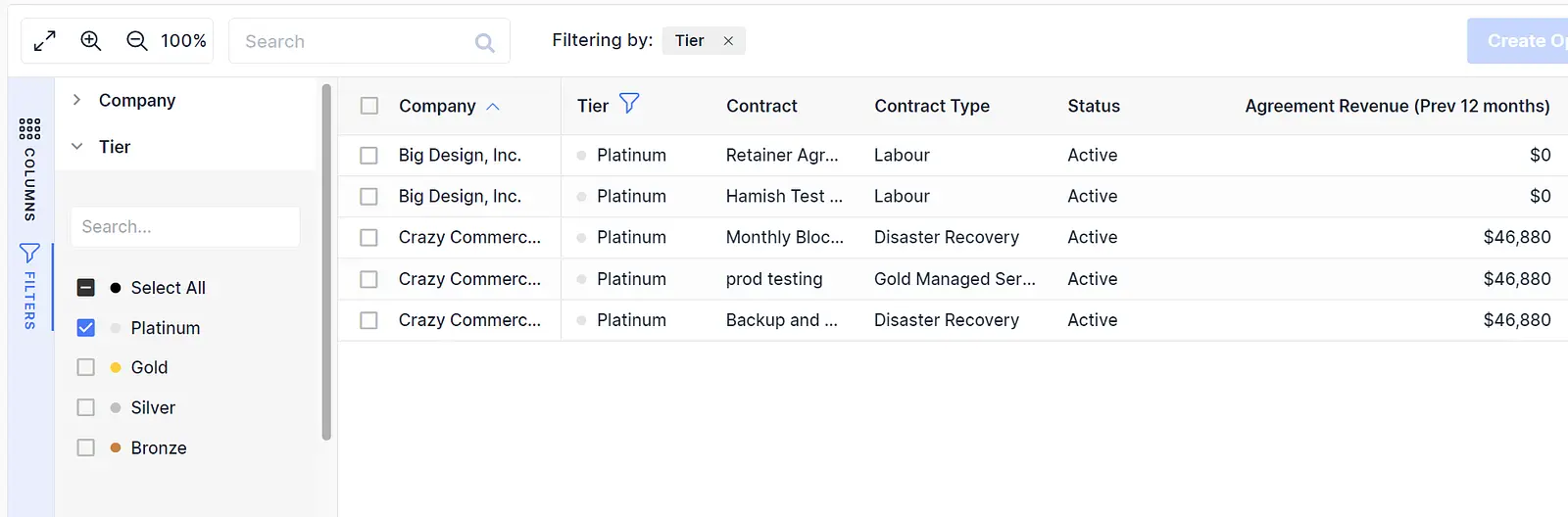
Can filter on one or many columns using the "Filters" sidebar, for example, here the table is filtered only on "Platinum" tier companies
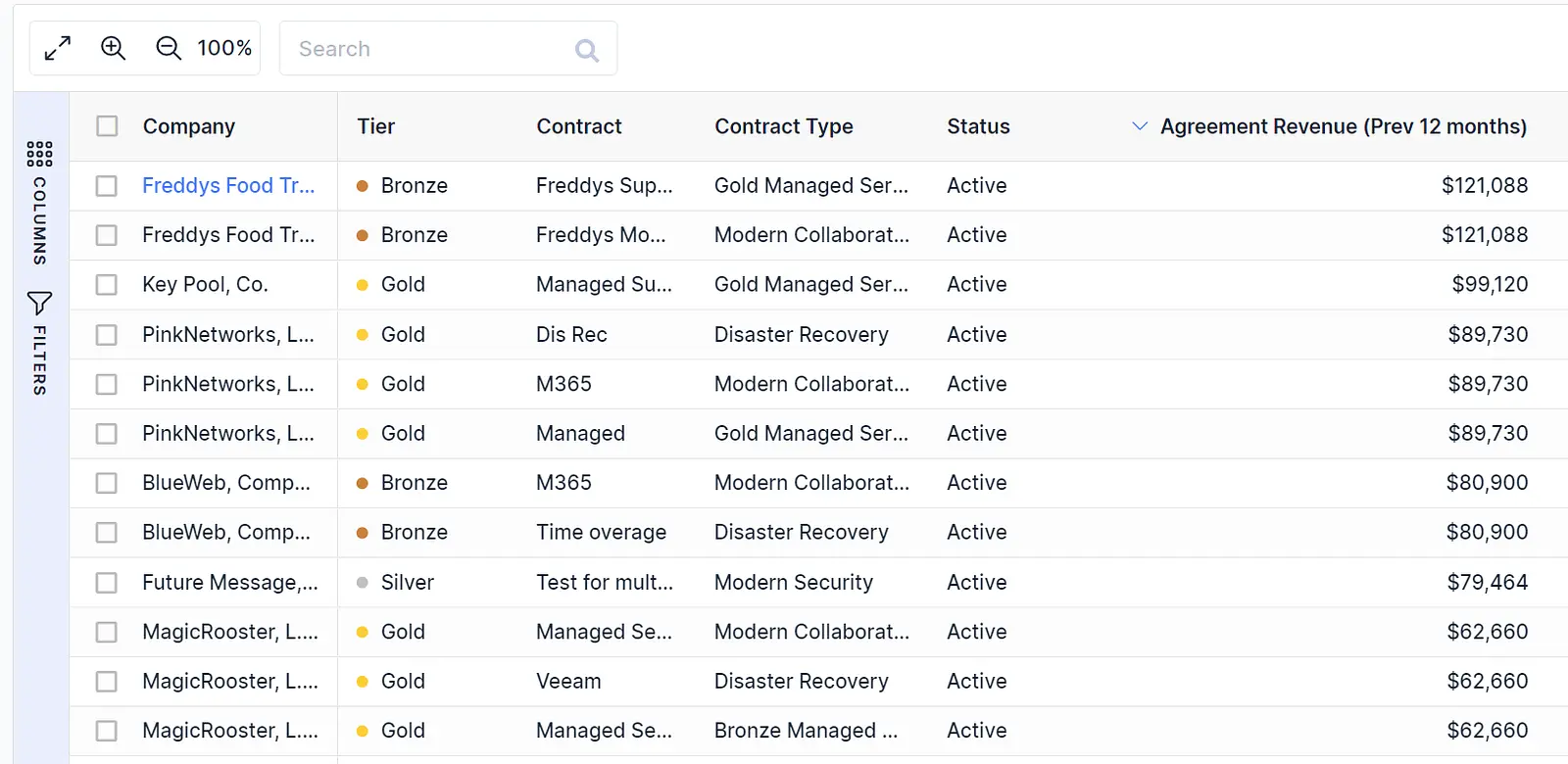
See the last 12 months agreement revenue for contracts (in this example, it is sorted highest to lowest)
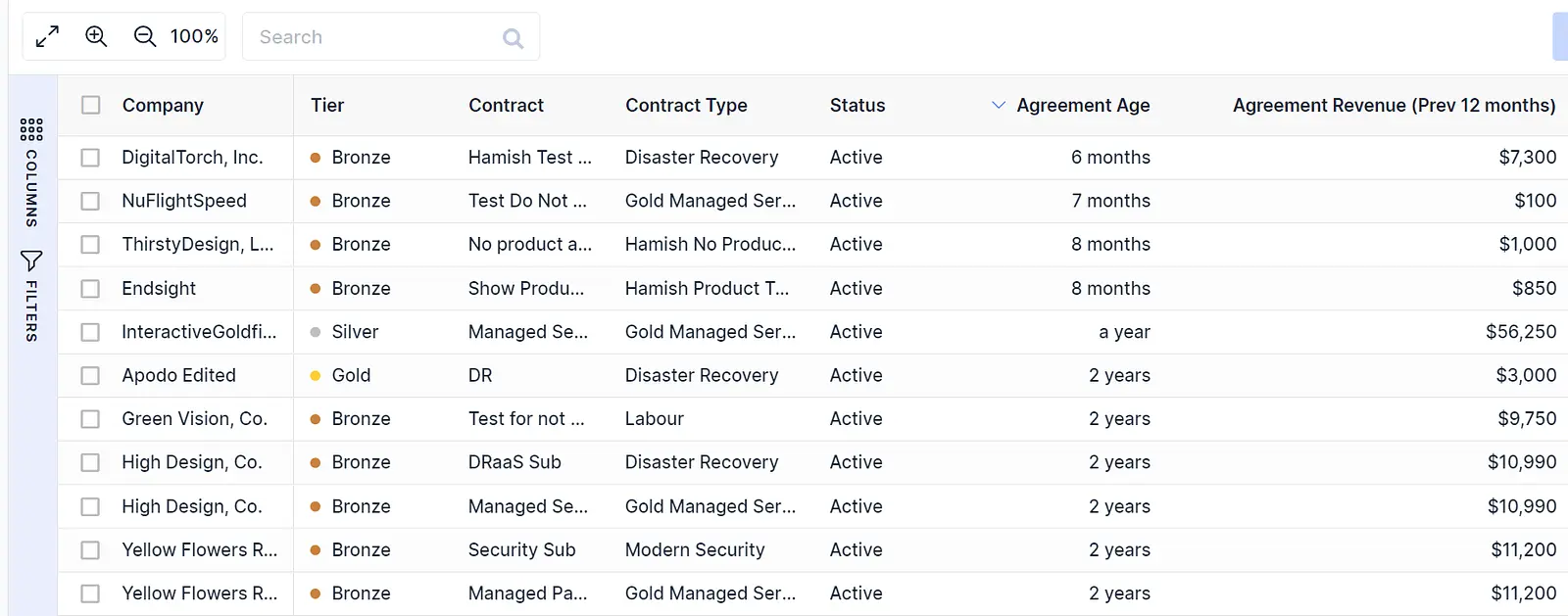
You can also see the age of the contract, so that, make sure that you older agreements have the correct pricing. The "age" = TODAY minus the [start date] of the contract.
Please note: if your contract (agreement) does NOT have an end date, the "End Date" column will be blank.
-
You can also see your contracts expiring within the next:
Less than 3 months = red
From 3 months to 6 months = orange
6 months or greater = green

Summary Tiles
You can now also see summary data for your contracts at a glance.
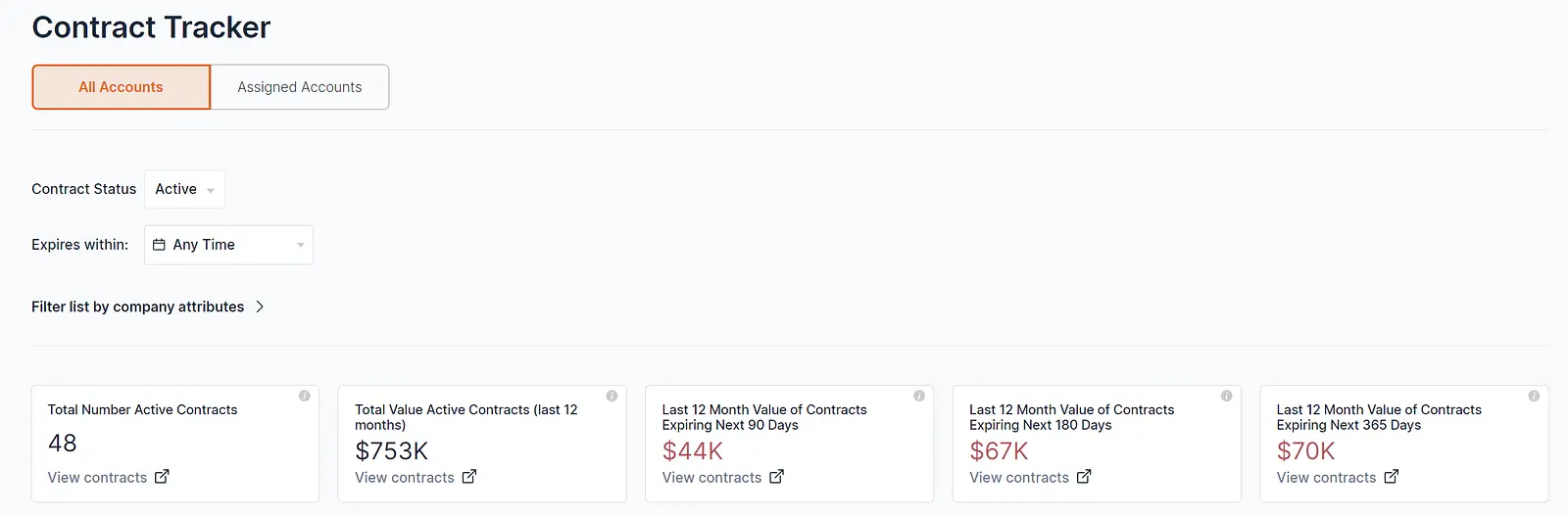
These tiles will also update based on your filters you have set, for example, if you want to see the totals for any of these filters, the numbers will update accordingly.
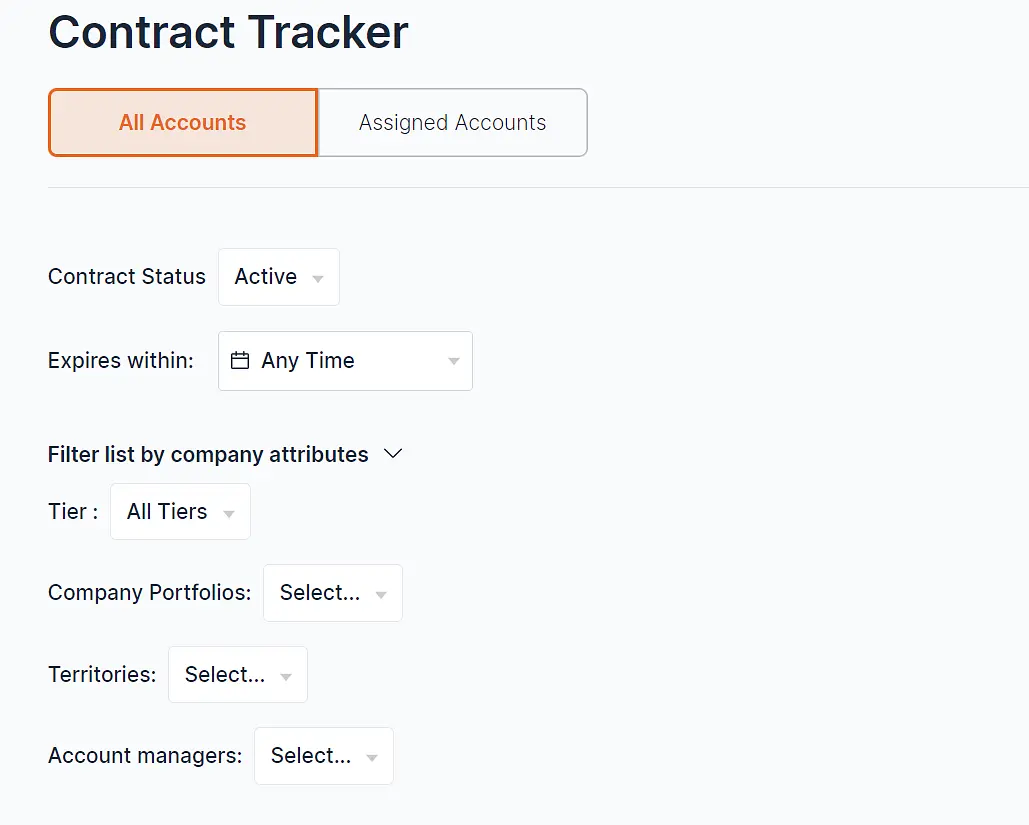
If you have any questions at all, please contact us from our "Get in Touch" page from our website here.
Was this article helpful?
Related articles
Rate and review your interactions
Quickly rate & share notes post-meeting to ensure you capture context
Engage with BeeCastle featuresOpen Opportunities "Next Meeting" and "Stage" filter
How to use the "Next Meeting" column and the "Stage" filter on the Open Opportunities view to quickly review pipeline.
Engage with BeeCastle featuresCustomer Profitability - Set Up & Data
This guide shows you how to set up and sync your data for Customer Profitability
Engage with BeeCastle featuresCreate Meetings from Open Opportunities
Quickly action meetings when you need to and save time