Customer Profitability - How To Use Guide
Watch these step-by-step videos on how to best use Customer Profitability
Please note:
Currently only available for ConnectWise customers
Currently only available for paid customers
This is release 1 of profitability, we are planning extra features will be available in future releases
USING PROFITABILITY
Assigned accounts
Filters
USING PROFITABILITY
Navigation
You can navigate to "Customer Profitability" from the left navigation panel.
Field Help Text
You can see explanations for the columns by hovering over the column name, as shown in the short video below.
Dashboard filters
Assigned accounts
You can filter the profitability dashboard with the existing Assigned Accounts "All Accounts."
Select "All Accounts" to see the profitability companies for "All Accounts" and just your "Assigned Accounts"
Filters
You can filter the data by time range from the options below.
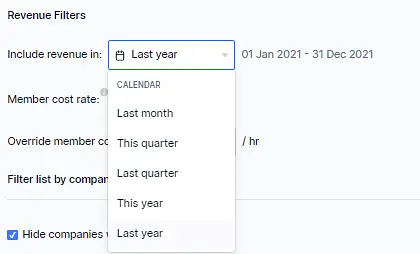
Member cost rate
There are two fields to help you better understand your labour cost rates and how they impact your profitability.
Member cost rate (output field)
This field shows the average member cost rate as entered in your PSA. The profitability data table is calculated on actuals, this field is to provide you an overall understanding of the member cost base.
Override member cost (input field)
This field allows you to input an "override" team member hourly cost rate. Once entered, the data in the table below will recalculate to show the revised results.
Hide companies with no revenue or cost
You might have companies in your PSA which do not have revenue or cost.
To exclude these companies from the data table > click the checkbox "hide companies with no revenue or cost"
Table colour legend
To quickly see which companies are profitable and which ones are running at a loss, we have applied green = profit and red = loss to the column "Profitability $"

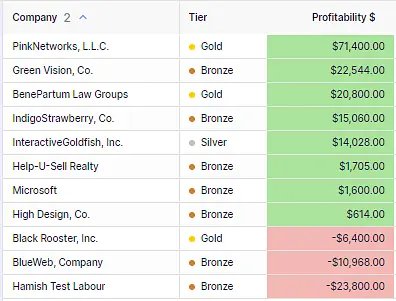
Table sorting
You can sort any of the columns by clicking on them.
Table filters
You can utilise all of the table column filters as you are familiar with across BeeCastle as well. The example below shows you how you could filter on "profitability greater than $100,000."
Search within table
The following video shows you how to search within the table to find a specific account. You can search for multiple accounts based, e.g. "Smith" or a specific account "Gerlach."
Export CSV
Like other areas in BeeCastle, you can export this data to a CSV file for further analysis off system.
Was this article helpful?
Related articles
Open Opportunities "Next Meeting" and "Stage" filter
How to use the "Next Meeting" column and the "Stage" filter on the Open Opportunities view to quickly review pipeline.
Engage with BeeCastle featuresCustomer Profitability - Set Up & Data
This guide shows you how to set up and sync your data for Customer Profitability
Engage with BeeCastle featuresCreate Meetings from Open Opportunities
Quickly action meetings when you need to and save time
Engage with BeeCastle featuresTrack Your Contracts in BeeCastle
Now you can see all of your contracts in BeeCastle and stay ahead of the game!